
User Guide: How to enter data in Recruitment Manager Template?
In this article, we will discuss step by step how to use the Recruitment Manager Excel Template.
DESIGN
The template focuses on two key pieces of input information – Jobs and Applications, entered in Jobs and Application sheets respectively. There are two key output sheets. The Dashboard presents a single page summary of Recruiting metrics, with several ways to filter/drill down. The Job Report sheet allows choosing one job to see the details of that specific job.
OVERVIEW OF STEPS
- Enter info. In Settings sheet (Recruitment Stages, Application Sources and Decline Reasons)
- Enter information of jobs to be filled in the Jobs sheet.
- Enter every application you receive in the Applications sheet.
- As you evaluate each application and move it from one stage to next, enter the date in Applications sheet.
- When a final decision is made on a candidate, enter ‘HIRED’ or ‘NOT HIRED’ in the Application Status column. Enter the Decline Reason if the candidate was not hired.
- When a Job order is completely filled, enter in Jobs sheet: ‘COMPLETED’ in the Status field and cost of filling the Job in Cost field.
- View Dashboard anytime to view the performance of recruitment process (Press Ctrl+Al+F5) to refresh calculations.
- View Job Report sheet for the summary of comments on Candidates for one job at a time.
- (Optional) Use Candidates sheet to store information about candidates.
DETAILED STEPS
STEP 1: Enter Settings information
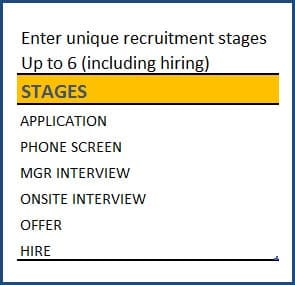
Recruitment Stages: The template can accommodate up to 6 stages in recruiting process. If you have only 4 stages, just clear the last two values.
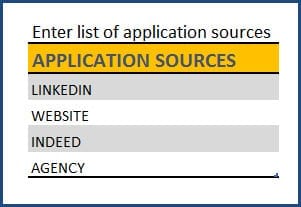
Application Sources: This will be the list of sources where you receive applications. You can customize the list as needed. Enter up to 15 sources.
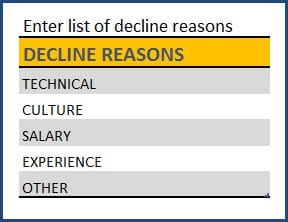
Decline Reasons: This will be the list of reasons we provide when decide not to hire a candidate. You can customize the list as needed. Enter up to 15 reasons.
STEP 2: Enter Jobs
In the Jobs sheet, you will enter each job in a new row with the following information.
Fields available: JOB ID, JOB TITLE, JOB LOCATION, HIRING MANAGER, DEPARTMENT, JOB TYPE, JOB LEVEL, RECRUITER NAME, JOB POSTED DATE, POSITIONS, STATUS, COST
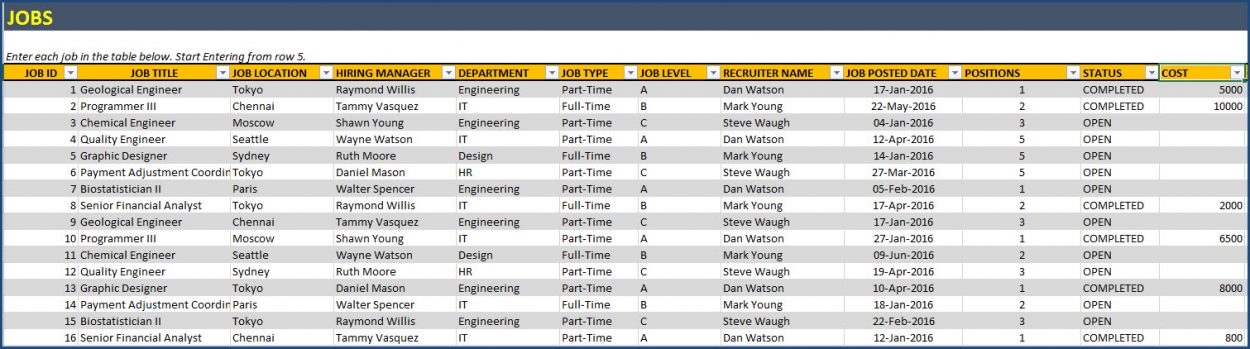
Most fields are self-explanatory. The last three need some explanation.
Positions: This template can handle multiple openings of same title. For example, if you have 3 openings for Graphic Designer, you can enter them in one row and enter 3 in Positions field/column.
Status: When you enter a new job to be filled, enter ‘OPEN’ as Status. When all the positions for that job are filled, enter ‘COMPLETED’ as Status. If the job is cancelled, enter ‘CANCELLED’.
Cost: After the job is filled, enter the total cost incurred in the recruiting for that job.
STEP 3: Enter Applications
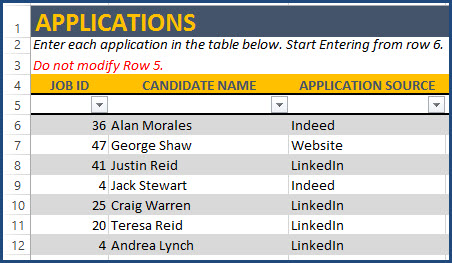
Enter each application you receive as a new row in the APPLICATIONS sheet. Start entering from Row 6. Please do not modify Row 5, as it will break calculations.
• Enter Job ID for which the application was sent.
• Enter Applicant name and the source through which you received the application.
STEP 4: Track Progress of Applications
In the next 6 columns, enter the dates on which the applicant crossed each of the recruitment stages.
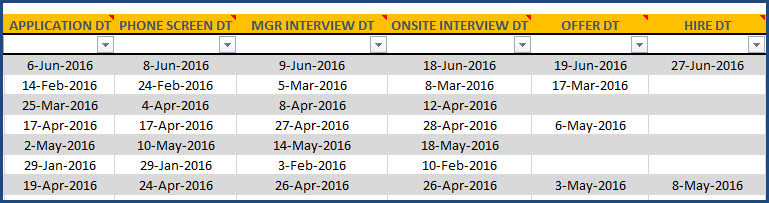
For example, in the image above, you can see the dates on which each candidate crossed the 6 stages. If a candidate does not reach a stage, please don’t enter anything in that column.
STEP 5: Update Application Status
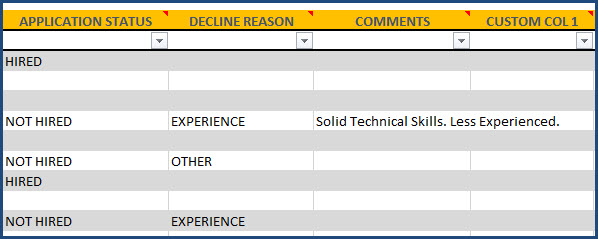
When a decision is made on a candidate, update APPLICATION STATUS column. Enter ‘HIRED’ if hired or ‘NOT HIRED’ if decision was taken not to hire the person. Enter the decline reason if the candidate was not hired. For example, if the candidate reaches the interview stage but does not get the offer due to ‘Technical’ knowledge , then enter ‘Technical’ as Decline Reason.
Please enter any comments or notes about the application in the COMMENTS column.
Error Checks
While entering data in steps 4 and 5 , please make sure that there are no errors. The template assigns applications as ‘ERROR’ (see column Q named ERROR) if one or more of the following conditions apply.
- Subsequent stage date is earlier. Example: Stage 2 Completion Date is before Stage 1 Completion Date
- Application Status = ‘HIRED’ and all stages are not completed.
- Application Status = ‘NOT HIRED’ and a stage is missing. Example: Stage 4 has Completion Date but Stage 3 does not have a Completion Date.
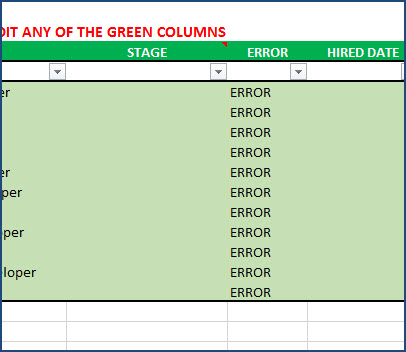
Those Applications with ERRORs will not be reported in Dashboard.
STEP 6: Update Job
When a job order is fully completed, go back to the Jobs sheet and update.
Status: When all the positions for that job are filled, enter ‘COMPLETED’ as Status. If the job is cancelled, enter ‘CANCELLED’.
Cost: After the job is filled, enter the total cost incurred in the recruiting for that job.
STEP 7: View Dashboard
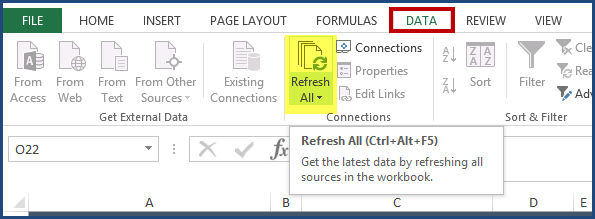
View Dashboard anytime to view performance metrics. The dashboard is fully automated. Since it uses pivot tables for calculations, we have to refresh it whenever we added/updated input data on Jobs and Applications. Please refresh it by (DATA ribbon –> Refresh All button) or keyboard shortcut (Ctrl+Alt+F5).
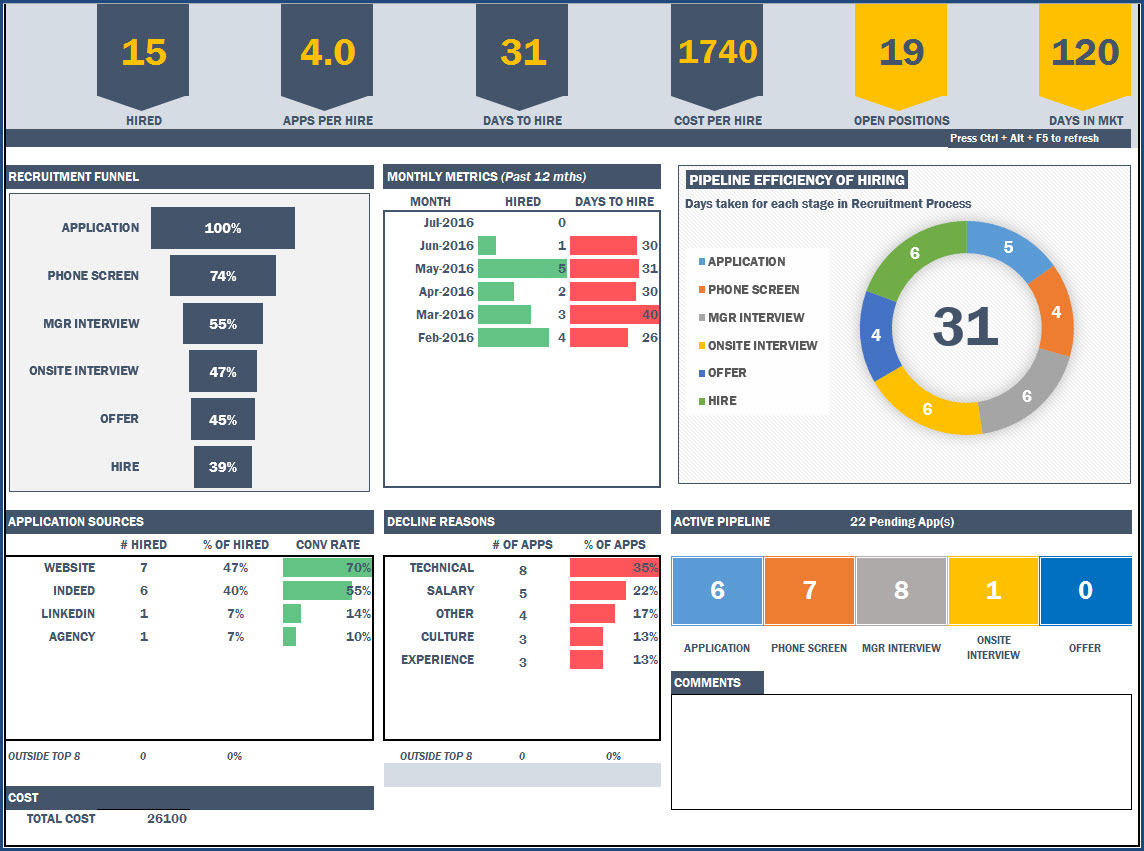
The dashboard is very flexible as it allows you to drill down using the filters. There are 10 filters/slicers available to analyze the data in detail and make smarter business decisions.
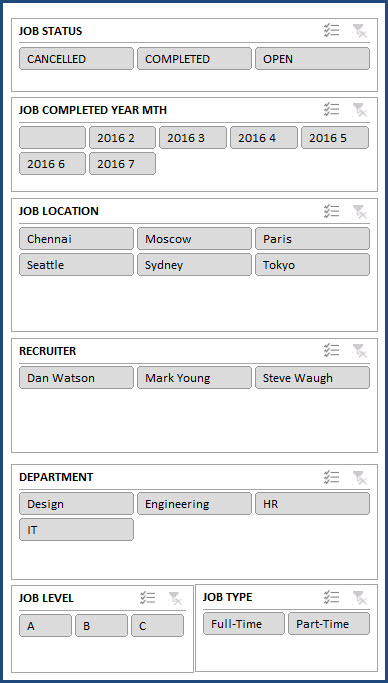
If the dashboard does not reflect the data entered, please refresh the calculations first. Then, check if there are ERRORs in the Applications (see column Q).
STEP 8: View Job Report
In the Job Report sheet, we can choose a Job ID and view all details for that one job. We can also see the Candidates and comments for each stage. This can be a useful tool to have a meaningful discussion with the stakeholders on the applications and thus take decisions.
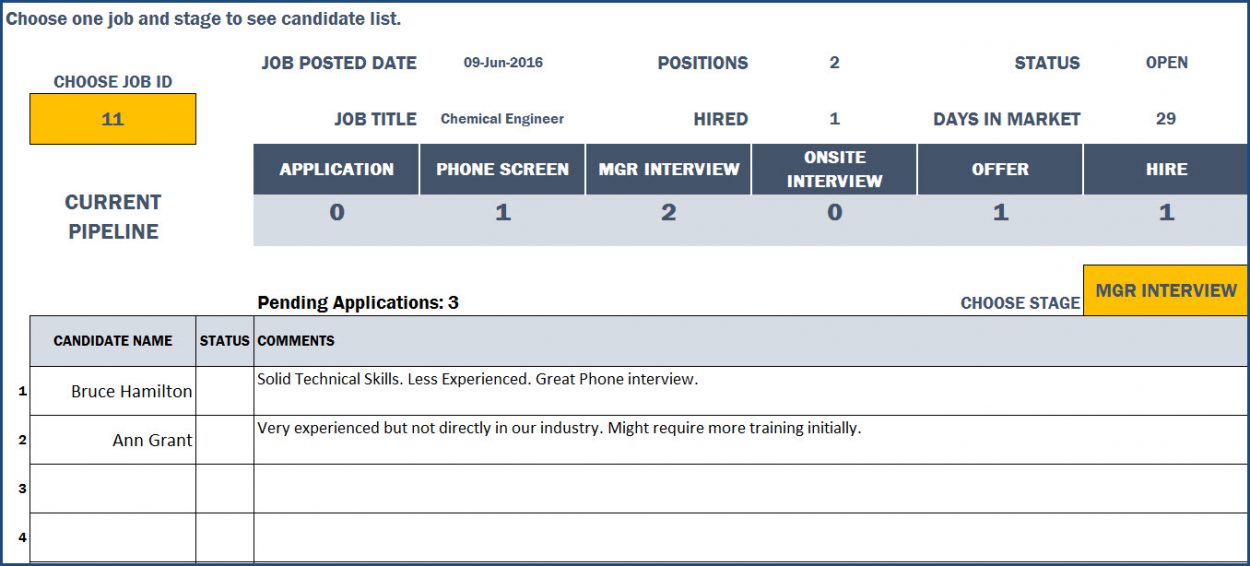
STEP 9 (Optional): Enter Candidates’ data
The Candidates sheet available is optional. We can store candidates’ contact information and other notes such as Skills, Strengths and Weaknesses. We can add new columns as needed.
63 Comments
Hi,
What to do when there are a lot of applications?
Should the database be renewed after one year?
Thank you for using our template.
Currently, there is no limit in application tab but more number of applications like 10k or 20k, might affect the sheet’s loading time according to the system performance.
Having a separate template will be advisable if you are having a large number of applications received for one year.
Best wishes.
I need to unprotect the “View Job Report”
Hi, on my dashboard page the recruitment funnel is not working. I am showing no errors on the applications page. Thanks
We regret the inconvenience caused.
Requesting to check the below link to know the most common reason for the concern related to dashboard not getting populated:
https://indzara.com/2018/05/recruitment-manager-why-dashboard-not-updated/
If you are facing issue even after following all steps provided in the above link, requesting to share your sheet to support@indzara.com to check further.
Best wishes.
Hi ,
In the application (sheet) instead of dates can i put no of candidates shortlisted.
For EG.
Instead of phone screening can i put no of CV shortlisted, instead of MNGR Interview can i use MNGR interviewed , instead of Onsite interview can i use Test conducted.
Thanks for your message.
This template is designed keeping in mind that for each unique job id, you will receive several applications. We track the status of these applications and the dashboard is prepared. In present scenario, you will receive some applications for a particular job id, if just the number of applications is mentioned, then it will not calculate the stages at which an application reached in the whole process.
This will distort the dashboard readings too. The dashboard shows you the percentage of the application at each stage and you can apply slicers to filter the required data.
Best wishes
hi borher
at the Job Report sheet, how many records can take. its seems to me only 25 records.
how can i increase number of records.
Thanks for using our template.
The Job Report shows the number of candidates at a particular stage for one specific opening. We understand that this number will not be more than 25 at a given time. Hence the number of rows is 25.
However, you can extend the table down to accommodate more candidates.
Best wishes
Hi, my dashboard page is not adding up correctly. I’ve been through all the steps and there are no errors in the other worksheets. The filters are also not showing on the dashboard. Haaallppp! Thanks, Jen
Thanks. If you have already tried the steps provided in https://indzara.com/2018/05/recruitment-manager-why-dashboard-not-updated/, please email file to support@indzara.com
We will review and address your questions.
Thanks & Best wishes.
My Dashboard looks slightly different than what is represented here on the tutorial. In addition, there is one additional metric that we must measure and I would like to know how to add this to the dashboard?
Hello
Thank you for using the template.
Please advise which additional metric you want to measure. For issues related to the dashboard, please refer to
Please review the following post
https://indzara.com/2018/05/recruitment-manager-why-dashboard-not-updated/
Best wishes
Hi. My dashboard seems to be not working
Hello,
Please review the following post
https://indzara.com/2018/05/recruitment-manager-why-dashboard-not-updated/
It lists some common reasons for error.
Best wishes
Hello Please help
The dash board doesn’t seem to communicate with the rest of the tabs. could i send u the file to take a look please?
thank you in advance for a quick response. this table is due on thursday.
many thanks
Hello
Please send you file with the issues that you are facing to contact@indzara.com
Best wishes
My review at this point is that the product doesn’t have full functionality. The “Job Report” and “Dashboard” tabs don’t appear to be working. Requests for assistance have not been responded to at this point. Please advise. Thank you.
Thanks for sending the file.
Once I refreshed the calculations from the DATA ribbon, the dashboard displayed the results.
Some parts of the dashboard are applicable only when there is at least one hired application. Please update Application Status column with data.
Row 37 in Applications sheet – This application has a data entry error (column Q indicates this), because STAGE 1 DT is not entered.
In Job Report sheet, I chose the Job ID and then Stage. The candidates are listed as expected.
I have emailed you this info along with screenshots.
Please let us know if there are any questions.
Thanks & Best wishes.
Hello There,
Great job with the template. I am trying to add more to the existing list of “Status” . How can I do that?
Also, Is it possible to add more KPIs to the Dashboard?
Thanks.
Hello
Thank you for using our template.
You can add more “Status”. You have to select the column and change the data validation.
We have created KPIs which are usually tracked by organisations. Please advise which KPI you want to add to the existing template.
Best wishes
Hello,
Thanks for returning my query.
I am not sure got this right.. where do you change the data validation in the “Jobs” tab?
With regards to additional KPI, I need to add:
– Delay raisons (Process bottlenecks); Quality of Hire; Interview per Hire; Retention rate; New Hire performance; New Hire engagement; Culture fit.
– Various ways to calculate TTH:
* From Pipeline Briefed date – to Candidate start date.
* From Briefed date – to Offer accepted date
* From Briefed date – to Start date
– From offer accepted – to Start date
Thanks
Carine
Sorry for chasing but any chance to get some feedbacks? Thanks
To change data validation of a specific cell or cells, please select cells. Then, select ‘Data Validation’ in the Data Tools section in DATA ribbon. You can change the list there. If you have a specific cell to change, please specify.
You can add additional columns in the Jobs sheet or Applications sheet, to track necessary additional calculations. Bringing them over to Dashboard would require many steps and is not easy to explain here. In a new sheet, you can also write formulas to calculate the additional metrics, separate from the Dashboard also.
Please let us know if there are any questions.
Best wishes.
I’m consideringoing buying your template however I have a few questions I don’t have amy use for the heading location as all job advertised will be in one office can I change heading to a different name
Thanks for your interest.
You can change the heading in the Jobs sheet, however, it would not automatically change in the Dashboard, You have to edit the slicer name in the Dashboard and change the label.
Please let me know if there are any questions.
Best wishes.
I need more than 6 stages is that possible
I am sorry. I don’t have a version that supports more than 6 stages.
Best wishes.
In JOB REPORT sheet, when I choose stage, its only appear 25 name of worker but actually we do have more than that. how can I see the rest of the name in this sheet. tq.
Please unprotect the sheet with indzara as password and then extend the formulas down for more rows. If you need any help with it, please email file to support@indzara.com.
Best wishes.
Love the program- quick question regarding an issue.
The system is reporting an ‘ERROR’ and I can’t seem to find what it is within the input sheets. It’s keeping the dashboard from displaying.
Thanks,
Thank you. Glad to hear. Are you noticing Error in column Q in Applications sheet? If so, please see the https://indzara.com/2016/07/user-guide-enter-data-recruitment-manager-template/ where I explain why data entry errors can happen. I will also email you this information.
Thanks.
Hello –
I have several ERRORs in my report as we do not necessarily complete all of the Stages. For instance, we frequently have Managers interview and no pre-screens or go straight to an Onsite Inteview with no pre-screen. If I enter dates in each of the Stage columns – this will be inaccurate information. Suggestions?
IF any stage is skipped, please enter the previous stage’s date or following stage’s date. Please do not leave it empty. Thanks.
Best wishes.
Hello!
indzara is not recognized as the password to unprotect the dashboard – All I would like to do is – use our company theme.
Susanne
I just now tried ‘indzara’ as password to unlock and it worked. If it doesn’t work for you, please email the file to support@indzara.com and I will take a look.
Best wishes.
Hi, is it possible to unlock the page for the dashboard so I can change the colours for our company?
Yes, you can unprotect using indzara as password. Please let me know if there are any questions. Best wishes.
Thanks, Thank you for the great template! Under the Job Report, can all candidates be listed on one page in different stages?
Or is there another way to create a list of all candidates per Job and in what stage they are in?
Thanks!
Brandi
You are welcome. I am glad that you like the template.
In the job report, we can view only candidates for a selected stage. To see all candidates for a job, please try the filters available in the Applications sheet. If you filter on Job ID, you will be able to see only candidates for the job.
Please let me know if there are any questions.
Best wishes,
The recruitment funnel is not updating properly. its only showing result for the applications for whic we update the status as hired or not hired. Otherwise, no response even after updating stages.
Thanks for purchasing. The recruitment funnel represents only applications where we have taken a decision on (hired or not hired). Applications where we have not made a decision, will be shown in the Active Pipeline at the bottom of the dashboard.
Please let me know if there are any questions. Best wishes. Thanks..
Thank you very much for your prompt reply. Is it possible for the user to add additional columns in worksheeet named JOB to enter details like experience reqd, nationality preference, salry range etc. in the current i Only see 02 columns for customising. if I need more what’s the solution?
You are very welcome. Yes, we can insert additional columns in Jobs sheet and that will not break any of the formulas.
If inserting columns in Applications sheet, we should not insert between the six stage date columns. We can insert before them or after them, without any problems.
Please let me know if you need help. Thanks. Best wishes.
Hello dude,
i have purchased and i want to ask about =HELP!
Where’s it referred ?
Thanks
Thanks for purchasing. HELP is a hidden sheet where calculations are done.
Best wishes.
Hello,
I purchased the program, it is very useful thank you. i faced some issue, I have emailed you regarding this, i hope i can get a prompt answer.
Thanks for purchasing. I had emailed you a response. Please let me know if there are any questions. Best wishes.
On the Job Report Tab when you select the Job ID, should the candidate inform automatically populate?
Thanks for purchasing. We have to choose JOB ID and the Stage (towards the right of the sheet). Then the candidates in that stage for the Job will be automatically listed.
Please let me know if there are any questions. Thanks. Best wishes.
The job report does not populate results is there any hidden procedure?
Job Report will update automatically if the Job ID and the Stage are entered. If you have entered both inputs and the report has not updated, please let me know. Thanks & best wishes.
I have same issue. The comments do not populate in the job report tab not matter what stage the applicant is. I add comments after phone interview stage and comments do not populate in the job report tab.
Thanks.
Can you please confirm that you have entered the comments in the Applications sheet? In the Job report, can you see the candidate names but not the comments? Please let me know. If possible, please email file with data. I have emailed you as well.
Best wishes.
I’m curious about putting the number of positions in the positions field. If I have 10 openings for one position they are going to be filled at different times. If I put all of those openings in one line and only use COMPLETED when all 10 are filled, then my time to fill will be according to the last position filled. Wouldn’t it make more sense to keep them separate so that I have a time to fill for each position?
Thanks for your question.
The template calculates the ‘Avg Days to Hire’ based on each position hired. So we will look at each of the 10 hires (not based on only the last position filed) and average the time it took.
If all the 10 positions are posted in the job market at the same time, then it would be more appropriate to enter 10 in Positions field.
Best wishes.
Quick question. I see in Job level you have A, B, C. Is this mandatory and what does it mean?
Am I able to make my own job level entries or does it have to be A, B, C?
Thanks for your question. Job Level is not mandatory. You can choose to ignore this field. I have seen companies use Job level to segment jobs by pay scale, titles and/or benefits. The values can be anything and do not have to be A, B,C. Please let me know if there are any questions. Thanks & Best wishes.
Thank you so much!
Please make it available for Excel 2011 for Mac
Thanks for the comment. I am sorry that this is not compatible with Excel 2011 for Mac. Microsoft didn’t provide ‘Slicers’ feature until 2016 for Mac. This will prevent any sort of filtering on the dashboard. To create all those filters without Slicers will be very difficult and complex. Best wishes.
I Really need help with solving an error on the template how soon someone contact me at 713-857-8032
I have emailed you about this. Please reply with file and the specific questions. I will be happy to review and get back to you.
Thanks. Best wishes.