
Project Planner 2023 – Free Excel template for Project Planning
If you are looking for a project management tool or software that can make project planning simpler, you have come to the right place. In this post, you will learn about a simple project planning framework and how to plan your projects smartly. You can download the free Project Plan template and start planning your projects immediately in Excel.
This post is written such that even if you are new to project planning, you will be able to quickly get started. By the end of this post, you will learn how to do the following using the template
- To know when your projects will complete and if projects will complete by due dates (deadlines).
- To understand resource utilization and identify opportunities for re-assignment to improve project completions.
- To determine any shortage of resources, so that you can request additional resources.
- To communicate to project stakeholders the readily printable project plan report, project timeline, project schedule (Gantt chart) and resource schedule.
Video Demo
What is Project Planning?
As a Project Manager, one of the key responsibilities is to plan the project before beginning the actual project work. This project planning is very crucial in the success of the project. For example, if our project is to build a home, then we want to have a clear project plan as to how we will build before we start building.
Outcome of Project Plan
Let’s assume you are the project manager and you are responsible for planning multiple projects at the same time. The outcome of the planning stage should address the following questions:
- When will all my projects complete? Will they complete by the target deadlines?
- How much will each project cost?
- How efficiently have I used the resources on project? (Utilization Rate)
- How can I communicate to my team so that they know which work needs to be done when?
If the answers to the above questions are not satisfactory, we will have more questions. We will address that later in this post.
Now, why is not easy to answer these questions? The foundation to answering these questions is to build the project schedule (who is going to work on which task for how long).
Project Schedule
To build project schedule, we need to consider a variety of factors
- Resources
- List of resources on the project
- Available number of hours each day for each resource
- Company holidays where work will not be done
- Tasks/Work
- Number of hours of work needed for each task
- Any restrictions on Start Date (a task cannot start until you receive the machine needed)
- Dependencies between tasks (a task can begin only after another is completed)
- Resource-Task skill matching
a. Assigning which resource should work on which task
Based on all the above input, we need to build the project plan schedule. This can get easily out of control if we do it manually. This is where we need the help of computers and software to build the schedule for us. Popular tools like Microsoft Project can do this. Now, you can also do it with a free project management tool.
Automatic Scheduling Engine
The template takes the above-mentioned inputs and automatically builds a project schedule. It lays out how we will complete the work needed for the project using the resources available. It clearly states who will be working on what task for how long on a given day.
It takes care of all the computations needed and saves us a ton of time and effort. For more, please read How does Automatic Scheduling Engine work.
Output of Project Planning template
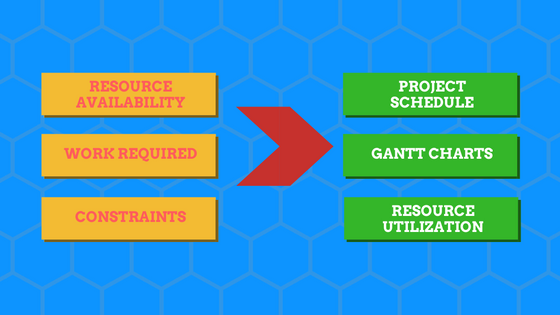
The template provides the
- Plan summary which details the key dates (start, end) for each project and its status
- Visual Timeline view of projects
- Resource Summary with utilization rates
- Task schedule (Gantt Charts) for a project, a resource or all tasks
- Resource availability and scheduled work by day
What if you are not happy with the project plan?
It may take a few iterations to land on a schedule that is acceptable. For example, in the first iteration, it might take really long to complete the project, in the next iteration it may cost a lot.
The levers a Project Manager has are
- List of Resources
- You can add or remove resources in the Project
- Availability of those resources (standard hours, vacation)
- You can change the available number of hours from each resource on the project
- Assignment of resource to task
- You can change the resource assigned to a task if possible
- Scope of Task(s)
- Sometimes, you can change the scope of a task and thus reduce the work needed
Once we land on an acceptable schedule, the Project Manager finds the answers to the original questions and shares in a project report with the Project sponsors to get approval. Once approved, what we have is a project plan. This will include key dates (milestones), the detailed schedule, cost estimates and resource utilization rates.
Project planner Excel Template
Benefits of project planner
- Have Control over Project and Task dates
- Project Start Dates can be restricted (optional) by providing preferred start date
- Task Start Dates can be restricted (optional) by providing preferred start date
- Preferred Project End Dates (aka Project due dates) can be given to compute if projects complete on time (optional)
- Preferred Task End Dates can be given to compute if tasks complete on time (optional)
- Control the order of Projects and Tasks by assigning priorities
- Projects need to be prioritized and prioritization is followed when resources are assigned
- Tasks can be prioritized and prioritization is followed when resources are assigned
- Each task can have up to two predecessors (dependencies). They can be within project or from other projects. A task can begin only the day after its predecessors have completed.
- Customize Capacity or Resource availability
- Customize Weekends
- Can handle any number of company holidays
- Hours available to work per day (for the duration of the planning period) is customizable for each resource.
- Notes
- Each task is assigned to one and only one resource. A project can have multiple tasks and hence multiple resources.
- Resource can be assigned to multiple tasks on the same day.
- Planning is done at the granular unit of hours
- Assign some tasks as milestones if needed
Free Downloads
How to plan projects in Excel?
Overview of steps
- [Data Entry] – Enter basic settings such as planning period, resources’ availability and company holidays
- [Data Entry] – Enter Project list
- [Data Entry] – Enter tasks, assigned resources and duration of work
- [Automated] – View Project plan summary, timeline view and resource summary report
- [Automated] – View Gantt Charts – Schedule for all tasks, one project or a resource
- [Automated] – View Resource Availability and Scheduled hours
Detailed Steps
The template has the following sheets: Home, Settings, Projects, Tasks, Plan Summary, Task Schedules, Resource View and Help.
If you are new to using Excel templates, please read this article on 3 tips before using Excel templates.
If you are not familiar with data entry in Excel tables, please read Introduction to data entry with Excel Tables.
Step 1. Enter basic settings
We begin by first selecting the planning period in the Settings sheet.
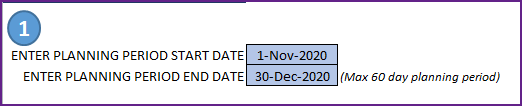
For example, I have entered the Nov 1, 2016 as the Planning Period Start Date and Dec 30, 2016 as the End date. The template can handle 60 days of planning period.
Next, we enter the list of resources (or employees) that are available to work on our projects.
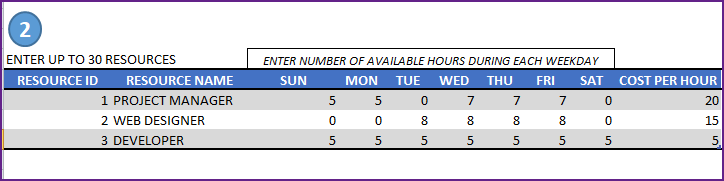
- We enter an ID for each Resource and the name.
- We then enter the available hours for each weekday for each resource. The template allows each resource to have varying work hours.
- We also enter the cost per hour for each resource. This input allows us to calculate the cost of the projects later.
Then, we choose which days are weekends in our organization.
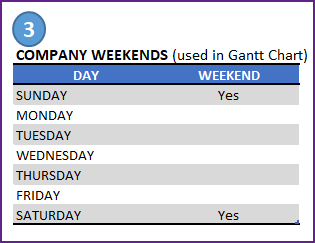
As we have already entered availability for each resource separately, company weekends don’t provide any additional input to availability calculations. But this is used to display company weekends in the Gantt charts (which we will discuss later in this post).
Finally in the Settings sheet, we enter Company Holidays.
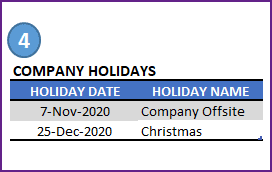
Step 2: Entering Project Data
Now that we are done with entering resource availability data, we move to the Project information. Let’s enter a list of our Projects.

- Project ID and Project Name are required fields. They should be unique. Duplicate project IDs or Project Names will cause errors.
- Project Priority is another required piece of information. This enables the template to schedule tasks in the order of priority. Priority of 1 indicates the highest priority project and Priority of 2 is the next important one.
- Project Description is for your reference.
- Preferred Start Date: If you would like the project to not start before a certain date, enter that date. The scheduling engine will not schedule any work for this project before this date.
- Preferred End date: If there is a deadline or due date for a project, you can enter that here. The template will indicate if the project cannot be completed by this date.
- Project Fixed Cost: The template can calculate resource cost separately. If there are other project costs, you can enter that amount here. Later, we will see that the template will add the fixed cost and the resource cost together as the total cost.
- Project Plan Status: Please do not edit the field as it is calculated with a formula. If the project is missing any key piece of information, then the status will be ‘Error’. If there are no errors in data entry, the status will say ‘Planned’
Step 3: Entering Task Data
The last part of data entry is the task level detail. We would enter each task in all our projects. Let’s look at required input fields first.
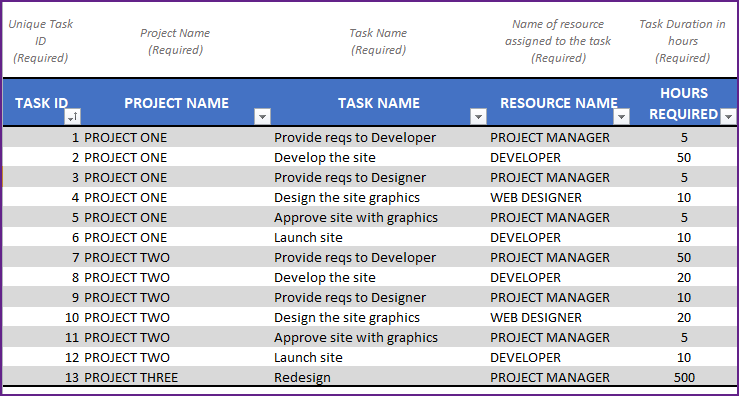
- Task ID should be unique
- Enter Project Name and the Task Name
- Enter Resource assigned to the task
- Enter planned duration of the task in Hours Required
There are optional fields that are available to handle additional scenarios that you may face in project management.
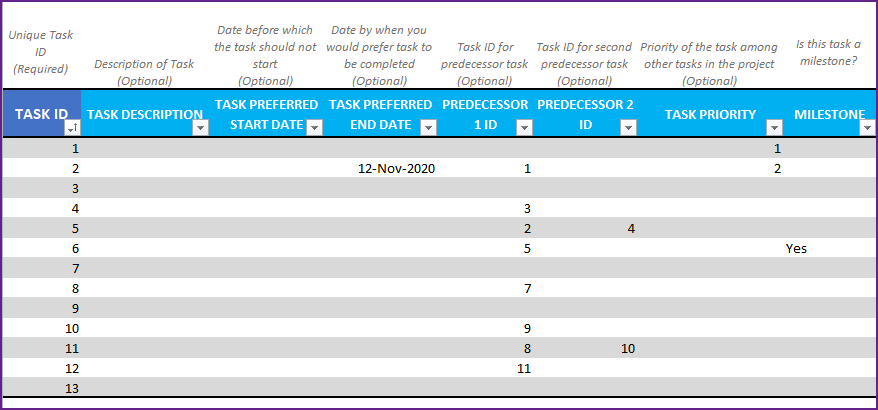
- Task Preferred Start Date: Just like we entered a Project Preferred Start Date in the Projects sheet, we can enter a preferred start date for tasks. The template will then make sure that no work for that task will be scheduled before that preferred start date. This is another way you have all the control on the project schedule.
- Task Preferred End Date: Similar to Project Preferred End Date, if we have a due date for a specific task, enter that here. The template will then compare the expected end date with this preferred end date and tell us if the task will complete on time or not.
- Predecessors: In most practical scenarios, tasks have dependencies between them. For example, in the image above, Task ID 2 has Task ID 1 as predecessor. This means Task #2 cannot begin before Task 1 is complete. Similarly Task ID 4 cannot begin until Task ID 3 is complete.
- The template supports up to 2 predecessors per task. For example, Task ID 5 will not begin until both Task ID 2 and Task ID 4 are completed. This can get very complex for planning, but the template has calculations built-in to take care of this. So, we don’t have to worry about it. 🙂
- If we don’t pay attention to setting predecessors correctly, we may end up with circular reference errors. How to avoid circular reference errors?
- Note: In this template, the dependent tasks can begin only the day after the predecessors complete.
- Task Priority: Just like we control the order of priority of projects, we can control the order of tasks within each project. Just enter the priority number. 1 is highest priority. This informs the template that higher priority tasks should be taken first. For example, if a resource is assigned to 2 tasks (one if priority 1 and second is priority 2), the template will schedule such that first task is completed before the resource moves to work on second task.
- Milestone: Certain tasks can be labelled as milestones and they are highlighted in the Gantt Chart. Just enter ‘Yes’ for those tasks in the MILESTONE field.
Now, let’s discuss the very important Task Plan Result field.
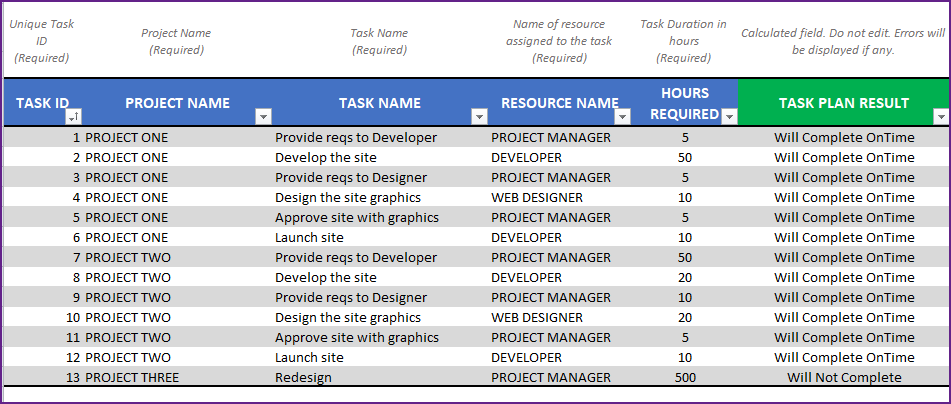
Task Plan Result is a calculated field that will instantly inform whether the task will complete on time, complete late or not complete at all within the planning period. If there is any missing data input, it will also show an error.
This instant feedback is great for a project planner as you can change the resource assignment to see if the task will complete then.
Once we enter all the tasks we are done with our data entry. In the image above, I have entered 13 tasks for 3 projects in total. 1 task (task ID 2) seems to be completing late (Expected End date > Preferred End Date). Task ID 13 will not complete at all within the planning period (by Dec 30, 2016).
Step 4: Viewing Project Plan Summary
The Plan summary sheet is all automated. It has 3 sections (Projects’ Summary, Timeline view and Resource Summary).
Projects’ Summary
Each project’s plan details are shown.
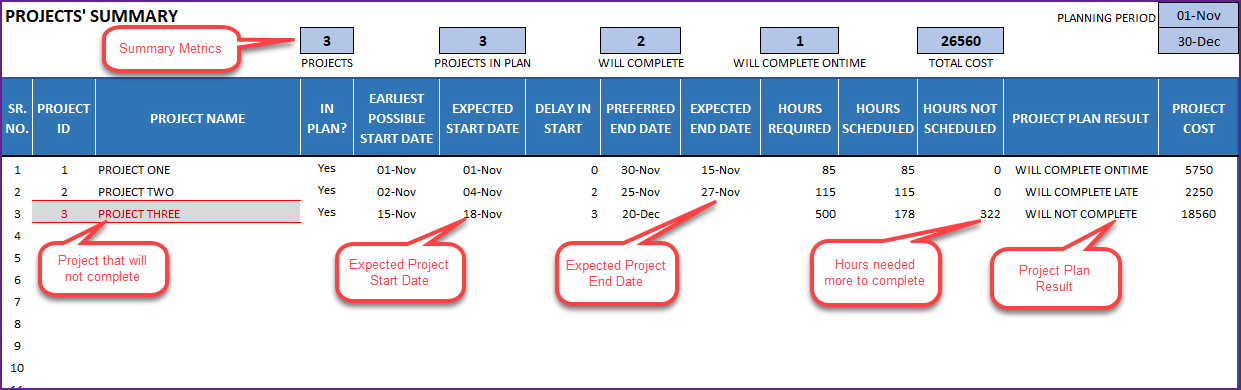
Dates when the project is expected to start and end are clearly shown.
You can just export to PDF and share the summary with your stakeholders.
Project Timeline view
We can also see the project timeline visually.

Resource Management Summary
One of the crucial parts of project management is effective resource management. Having a clear view of resource utilization during the project is essential to delivering a successful project.
The Resource Summary table shows each resource’s utilization rate and cost.
Utilization Rate = Hours scheduled / Hours Available
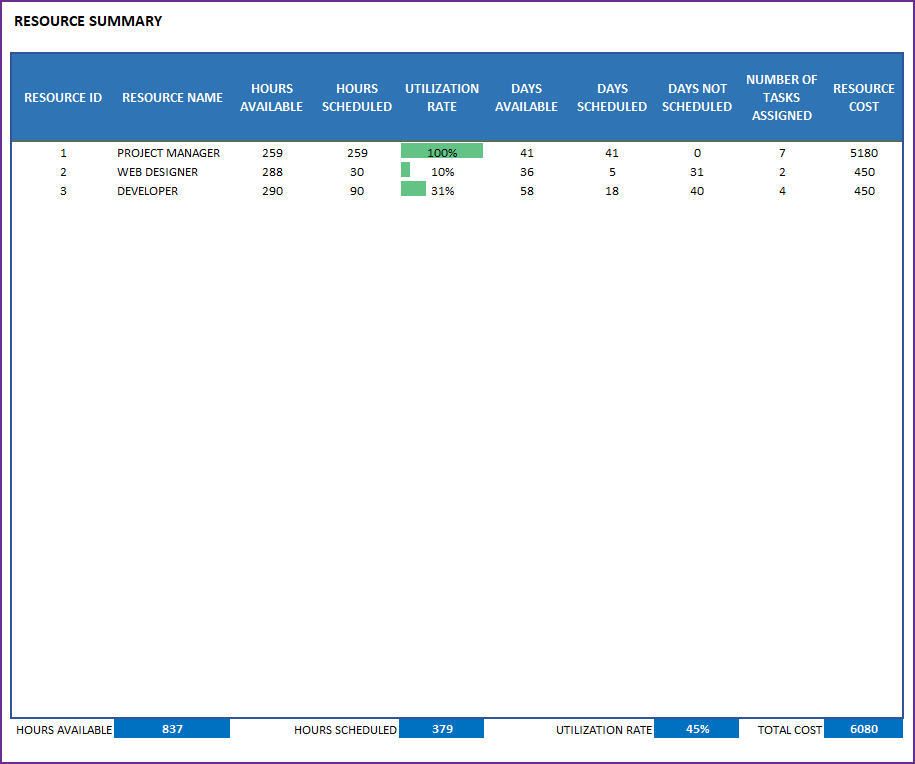
In addition, you can view the detailed number of Hours Available, Hours Scheduled, Days Available and Days Scheduled.
With the Plan Summary sheet, we have seen project level and resource level reporting. Next we can see the task level reporting as well.
Task Schedules
Task Schedules sheet provide three types of detailed schedules. All Tasks, Tasks from one specific project and Tasks assigned to one specific resource.
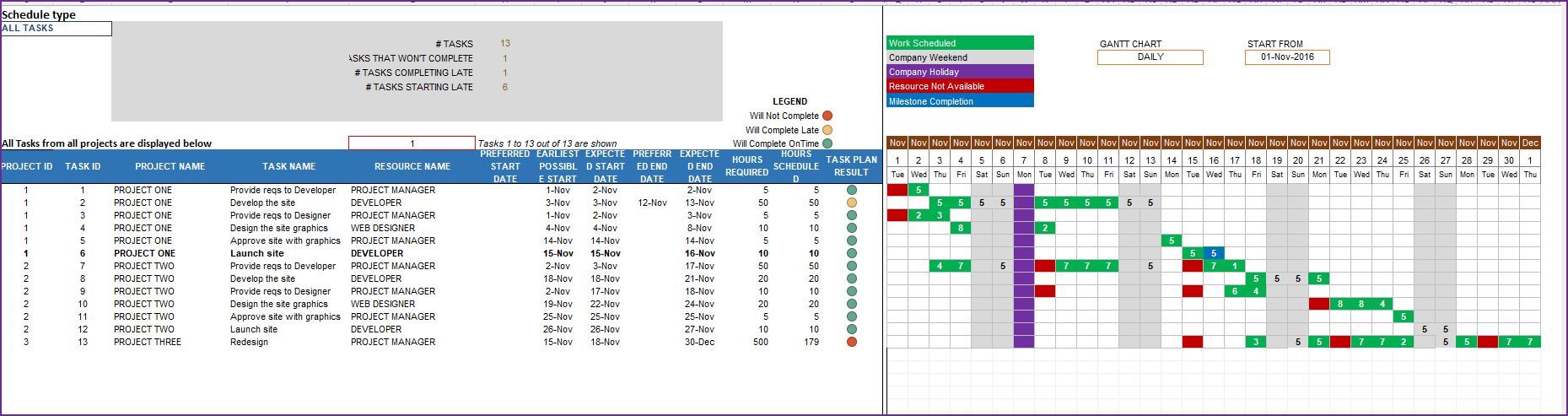
Once we choose a schedule type, there will be three sections of information.
- Summary Metrics
- Detailed Table with task dates, hours and planning result
- Gantt chart view
Summary Metrics
For ‘All Tasks’, the summary metrics appear like this.
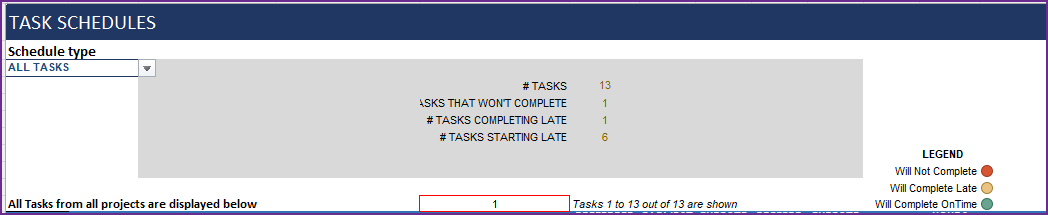
If we choose a specific project, then the summary metrics display change to present relevant project metrics.

If we choose a specific resource, then the summary metrics present relevant resource management metrics.

Detailed Task level Details
We can see each task listed below along with the key details such as expected start and end dates, hours required and scheduled, and the task plan result.

Gantt Chart view
In the Gantt Chart, we have option to view daily Gantt chart or weekly Gantt chart. We can also enter a start date of our Gantt chart.
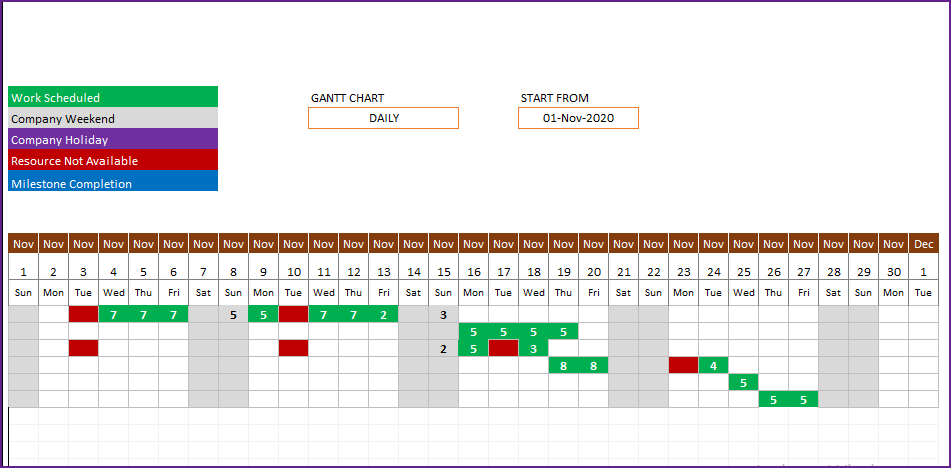
Gantt chart shows the number of hours scheduled for each day for the specific task. It also has the legend that explains the meaning of the different colors.
- Green: Work is Scheduled on this day.
- Gray: It is a company weekend day (resources may be available to work on weekends)
- Purple: Company holiday and no work will be scheduled on holidays.
- Red: Assigned Resource is not available to work on this task. This would indicate an opportunity to assign a different resource to see if that improves project completion.
- Blue: Milestone tasks’ completions are shown in Blue.
Resource View
Finally, we have the Resource View sheet which shows two key pieces of detailed information about resources.
We see the original resource capacity – number of Hours available by each resource on each day during project planning period.

This capacity is calculated based on the availability data we entered for each resource in the Settings sheet, and the Company holiday information.
Next, we also see how many hours each resource is scheduled for project work. In other words, this is the planned utilized time.

The difference between Hours Available and Hours scheduled is the Idle time or unutilized time.
From the above two images, we can see that the Web Designer is available 8 hours a day from Nov 1st to Nov 4th, but utilized only for 8 hours on Nov 4th. So, Nov 1st to Nov 3rd, Web Designer is not utilized at all.
I hope you find the template useful. Please provide your feedback via comments below. If you like the template, please share with others.
Recommended Templates
This basic template can plan up to 25 projects at a time and a total of 150 tasks for maximum Planning period of 60 days. To plan for more than 25 projects and 150 tasks and with a planning period of up to 1 year, please see Project Planner Advanced Excel template.
For more functionality like managing a project, creating customized Gantt charts, resource planning, check out our other products.
147 Comments
Hi Indzara,
The template has help me a lot for our weekly earthwork schedule. I have a question. Is it possible to add more than 30 resources? The file don’t allowed me to do that. How can I adjust the file for more than 30 resources?
Best regards,
Robertino
Thank you for using our template template and sharing your valuable feedback.
Extending the number of resource involves some complex steps. We can take it as a customization project for a fee. Please share your number of resource required at the below link for estimation:
https://support.indzara.com/support/tickets/new
Best wishes.
Where is the actual download link for the template?
Thank you for showing interest in our template.
You will have to click the blue box under free download header to download the template. Currently we are having an issue with WordPress Button Theme and we are working on it. Following is the download link for quick reference:
https://indzara.com/wp-content/uploads/2013/02/indzara_Project_Planner_Basic_v3_1.xlsx
Sample:
https://indzara.com/wp-content/uploads/2013/02/indzara_Project_Planner_Basic_v3_1_sample.xlsx
Best wishes.
Thank you for all your hard work on these templates!~
You are welcome. Thank you for sowing interest in our template.
Best wishes.
Hi Indzara,
Thanks a lot for the free template for project . I have noticed you include only human resources to the plan . Can you add the materials as constraints especially if the materials not available during the project the estimated arrival date of the materials may impact the milestones or the project. Therefore can you add with cell with color code to highlight the deadline / or required date of the arrival otherwise the task will be impacted or can not be worked.
Thanks
Best regards
Greetings! Can I combine 2 employees for one task?
Sorry, the template supports only one employee assignment to a task. We would have to split the task to 2 tasks and then assign one employee to each task.
Best wishes.
Good job thanks for sharing
Can you send to me this Excel fale my email jausefjausef@gmail.com
Hi
As per your request, we have shared the Project Planner 2020.
However, we will like to know about the issues that you were facing while downloading the template. Please share the following:
Your operating system
PC/Mac or a tablet
Excel version
Thanks
Hi
First, thanks for this useful template
How can i Increase the number of planning period (366 days) ?
Do you have a link to download it ?
Thanks
Thanks for using our template.
You can download it from https://indzara.com/2013/02/project-planner-basic-excel-template/.
Also, we have a premium template “Project Planner (Advanced) – Excel Template” at https://indzara.com/product/project-planner-advanced-excel-template/. This can handle a planning period of upto 1 year.
Best wishes
Most of the formula cell in tabs are hidden and protected. Can you please provide with complete without password.
Hello
Please use “indzara” as your password.
Best wishes
Hi, Can you pls provide project planner for agile projects, to track the sprints and all.
Hello
We don’t have any templates for that yet. We might come up with something similar in the future.
Best wishes
Hi Indzara,
This is great work . Loved the template. Just had a simple query.? Is it possible to have multiple Resources for the same task.?
Inserting a column would do the job. However multiple resource names will not reflect in the Resource View when searching for tasks with a resource. If the resource is in the 3rd or 4th place the search dwill not show up. Any idea of how to get to this?
Best Regards
Dr.Vijay V
Thank you. In the template, multiple resources cannot be assigned to same task. Scheduling logic in the template will become more complex with that option. If it is only max 2 resources per task, then adding a column and then modifying all subsequent formulas to account for new column should work. I am not sure about performance (speed) with more complex calculations.
Best wishes.
terimakasih pak bos…
Welcome
Hi,
Thanks for the template.
I was wondering, is it possible for you to implement a resource leveling option for resource management?
Thanks
Thanks for using the template.
We have noted your feedback. We will try to add this feature in the future releases.
Best wishes
Thanks. Also, I wanted to ask you:
1. if the Project Planner Advanced Excel template has all cells unblocked
2. if more than 30 resources can be added
Thanks and best regards
Hello
The password to unblock is “indzara”. The number of resources is limited to 30 now, we may increase this in the next releases.
Best wishes
Testing out the template. Thanks for sharing a free version.
Couple of quick questions
1. Tasks tab – Say i have task id 4, and I try to mark task id 4 as a predecessor on Task id 1, I get a circular ref excel pop up. Do the tasks generally have to be in chronological order (top to bottom for the predecessor set up to work?)
2. What are the plan limits for the Advanced version? I assume its more than 60 days.
Hi,
This is a great template, thanks for publishing for free.
We wish to use this for scheduling in a manufacturing shop floor, where apart from the resource allocated to a task there is a machine that require to be assigned as well. The utilization and scheduling of the machine requires to be reported on as well (similar to the resource that is currently available).
There always isn’t a 1to1 relationship between the operator and machine
Thanks
You are welcome.
Can the machine be treated as a separate resource and entered so?
Thanks & Best wishes.
Hi, I have a query on the following description on handling of Predecessors
“Note: In this template, the dependent tasks can begin only the day after the predecessors complete.”
If I buy the paid version of the project planner template, will the above limitation still exist..? If yes! is there a work around as because of this my lead time of the project is increasing, even though in reality I can finish it much faster, as in my case I can start the next task the same day its predecessor has completed and finish it too..
Expecting a quick response..
Thanks & Regards,
Anand Sonnada Matad
Thanks for your comment.
The paid version also works the same way. This was done to avoid overestimating completion times, as work hours for employees may prevent the second task from starting on the same day as completion of the predecessor task.
However, please see formula for the Earliest Possible Start column in hidden Scheduler sheet. We add 1 to the dates in that formula. Please remove the 1.
Please let me know if there are any questions.
Thanks & Best wishes.
Hi
Can’t dowload project planner basic free excel template ? I can’t dowload it on your website
Many thanks
Stéphane
Hello
An email has been sent with the template.
Best wishes
Hello,
First of all, a big thank you to Indzara for making life so easy and convenient for Project Managers like us when it comes to making project management report using excel template keeping in mind to meet multiple fields. Would also like to thank for making such a useful collective and user-friendly excel template for no cost.
After doing a thorough research on https://indzara.com/ and navigating thoroughly through almost most of the templates was wanting to know if there are any such templates like gives me a complete report of the client feedback for the task provided, the health of the requirement (Good, Average and Poor) and of course the performance of the assignee (Designers/ Developers) for the task along with whatever is currently in the indzara_Project_Planner_Basic_v3_1_sample template.
If there is any such template shall request to share the same, as I am pretty sure to have the same as helpful as the other templates viewed till now.
Look forward to hearing soon.
Thank you in advance
Hello
Thank you for sharing your requirements.
We will try to develop something similar soon.
Best wishes
Sir, I downloaded your basic project planner with sample data today.
First may I say, Thank you for making this available as a free template.
But I noticed on the TASK SCHEDULE tab Gant chart that the Weekly Gant does not calculate correctly.
Do you have a update to this?
Hello,
Thanks for your feedback, we have checked on our end. It works fine. I will request you to watch the video at https://indzara.com/2013/02/project-planner-basic-excel-template/.
In case still you face any issue, revert at contact@indzara.com with your file.
Regards
Hi,
Great Template!
Is there a way i can mark a task completed?
Thank you.
This is designed for only planning projects and not tracking the progress.
Please use Project Manager template https://indzara.com/product/project-manager-excel-template/ to track progress on tasks.(this supports only one project in a file)
Best wishes.
Great template
Could you send to me the project planner basic?
you can send dinhsonvcm@gmail.com
Thank you so much
I have emailed the file. It is also available for download on this page. This is the latest version.
Best wishes.
COuld you please let me know how you define “Ressource not available”.
I mean if I plan one ressrouce for the next 2 weeks but the ressource won’t be available One day out fo those 2 weeks, how to do it?
Sorry for the delayed response.
We can enter resource vacations in the Project Planner (Advanced) template. https://indzara.com/product/project-planner-advanced-excel-template/
Please let me know if there are any questions.
Thanks. Best wishes.
Hi, I think your template is great and provides a lot of functionality. I am testing it out with a small project and I cannot seem to change the start date from January 1900, should I start over or is there a way to fix this?
Thank you.
You should be able to change the start date. Please let me know which version of Excel you are using and which Operating system.
I will follow up by email as well.
Best wishes.
Great template, can the planning period be extended to 3 years somehow?
Thank you for the feedback.
The premium template allows planning for 1 year. https://indzara.com/product/project-planner-advanced-excel-template/
Since the templates do daily level scheduling automatically, doing such complex calculations for 3 years (3 X 365 days) slows Excel down. If some of the other features (predecessors, priority, etc.) are removed, then extending to 3 years would be possible.
Best wishes.
I thought the basic template was free, or am I missing something? I purchased your event planner some years ago and still use it till this day…,it’s a great tool!
Thank you. I am glad you like it.
The template on this page is still free. I just upgraded the features of this free template earlier this month. It will look and work similar to the premium template, but limited on number of projects, tasks and project duration.
Please let me know if there are any questions. Thanks. Best wishes.
When you program a getaway journey, be accommodating concerning your spot.
While it could be entertaining to determine a program by revisiting a well liked trip location, keeping some assortment in locations helps make your getaways much more
unique and relaxing. Moreover, choosing a various location could be answer to protecting just a little dollars
once the getaway funds are small.
Thank you sir , you are a good person
You are very welcome. Best wishes for your education.
Dear Indzara ,
I’m studying about multiple projects schedulling.
Which algorthm did you use for scheduling multiple projects?
Thank you
Glad to hear.
I am just applying priority based scheduling. We schedule the tasks for the highest priority project first. Within that project, we schedule the tasks based on the order in which they were entered in the Tasks sheet. Only after completing a higher priority task, resource can move to the next task.
In the advanced template, we use some additional constraints and levers to control schedule. https://indzara.com/product/project-planner-advanced-excel-template/
Best wishes.
Fantastic work!
Well done for creating the template.
I have a question regarding the working hours. How can I change the working hours from 8 to 7.3?
Thanks a lot
Thank you.
In the template, working hours can be set for each resource separately. You can enter the hours in the Projects sheet for each resource.
Best wishes.
The Project Planner – Basic (Free Excel template) is absolutely perfect for the needs of my organization. Thank you so much. You product is speaking the perfect language for me. Improvements are understandable, but please do not make any major changes, and please do not take the project away! Thanks again, and keep the support coming!
I am glad that you find the template useful. Thanks. Best wishes.
Similar question as one you answered earlier, how can I extend this template for a project larger than 60 days.
do you have a template that is for larger projects can you e-mail me an updaed templae
Project Planner (Advanced) can handle multiple projects up to 1 year of planning period.
https://indzara.com/product/project-planner-advanced-excel-template/
Project Manager template can handle one project for 1 year of planning period – this also includes tracking actual progress of the project.
https://indzara.com/product/project-manager-excel-template/
Please let me know if there are any questions. Best wishes.
Something wrong with the file. “No tasks entered for a project” is the error even after entering/typing the tasks…
If there is even a single project in the Projects sheet, that does not have any tasks entered in the Tasks sheet, this error would appear. Please ensure that the tasks are entered correctly inside the Tasks table. Thanks & Best wishes.
great template but I tasks sheet doesn’t show projects which I entered in projects sheet. dropdown is blank
Thank you. Please make sure that the projects are entered inside the Projects table. If the issue continues, please e-mail me (indzara at gmail) the file and I can look into it. Please specify the operating system and Excel version you are using. Thanks & Best wishes.
Thanks for sharing. Great template
You are very welcome. Thanks for the feedback. Best wishes.
Dear Indzara,
I wanted to know more about Project Management and then I watched your marvellous video presentation on Youtube!. Great stuff!
Thank you for sharing the template…
Best wishes!
You are very welcome. I am glad to know that the material is useful. Best wishes.
Quick question … who would I contact to see what it woutd take to get an update to that EXTREMELY useful Recruiting Tracker worksheet?
Be are in need of adding an addition column called “Tech Phone Screen DT” between the Phone Screen DT and the Interview DT columns.
Of course we would love to have it update the associated dashboard and Stage calculated colum as the other evnets do.
Cheers~
Thanks. You can email me at indzara at gmail dot com for any customization projects. I can let you know the feasibility, cost and timeline, based on the requirements. Thanks & Best wishes.
I want the following feature in Excel Can I get
–Project status of every project tracking development effort each day
–Hours consumption of project
–user story completion chart each person
–sprint plan
–sprint completion report with success percentage
— hours not logged- specific person
—sprint report by team/projects and user stories earned
I am sorry. I don’t have a template that has all the features you have mentioned. Thanks.
Fisrt of all congrats , the best I have seen so far on spreadsheet. Great work!! very simple to use and only using excel formulas. Will you have a version for GoogleDocs spreadsheet. When translated from excel, the main formulas do not get trasformed as they are not equivalent. Thank you.
Thank you. I am glad to know that you find it useful. Unfortunately, I have not had the time to convert to Google Spreadsheet. Sorry about that. Best wishes.
Do you have any plan to create a Google Spreadsheet version?
Sorry, I don’t have any plans as of now to create one in Google sheets. Thanks. Best wishes.
Very great work you have done!…. thank you so much for your help!
You are welcome. Thanks for the kind words. Best wishes.
Thank you 🙂
Hi,
Thanks for the nice ”Project Planner – Basic”, but I couldn’t download the template. I tried several times,but when I click on it nothing happens. Could you or any one here email it to : mehrad.s.b@gmail.com please?
Best,
Mehrad
Please click on the link to the file just below the Download button. Download button is currently not functioning. I am looking into it. Thank you.
Absolutely wonderful! appreciate the work…..thank you so much!
Thanks for taking the time to provide feedback. Best wishes.
Dear Sir,
how can we change the default weekdays and holidays as you have set the weekends as saturday and sunday. thanksfor the template it is very useful.
thank you so much for support me.
You are very welcome. I am sorry that the functionality is not available in this template. Please review the advanced version https://indzara.com/product/project-planner-advanced-excel-template/ which has a lot of additional features such as weekend customization, customizable gantt charts, timeline view and more.
Best wishes.
For the Scheduling I have some days where workers would only work 2 hours at one job then off to another job for that same day then back to job A. on the second day for 2 hours again.
Joe – drywall – Job A 2 hours
Joe – drywall – Job B 6 hours same day
Joe – drywall – Job A 2 hours second day
Can that be done?
Currently, this feature is not available. The v2 of the Project Planner Advanced template https://indzara.com/product/project-planner-advanced-excel-template/ will allow for assigning % allocation of resource to each task. That would allow scheduling a resource to work on multiple tasks in parallel. v2 is expected in August. Thank you.
Great Work!
I need exactly this functionality but i want to assign tasks to ressource manualy not automatically. Do you have a solution for that?
Thanks in advance
Thank you.
In this template, assignment of tasks to resources is done manually. But the schedule (when the task is actually scheduled to be done) is built automatically.
I don’t have a template that allows manual scheduling. https://indzara.com/product/project-planner-advanced-excel-template/ and https://indzara.com/product/project-manager-excel-template/ are both advanced templates and they also provide manul assignment of resources to tasks and automatic scheduling of tasks.
I plan to build a solution soon that allows manual scheduling. Thank you.
I would buy a template with such possibility
Thanks for the feedback. Please subscribe to our posts to receive updates on new templates as they are published. Best wishes.
how can i change the planning period from 60 days to weekly days (7 days)? i need it run short quick projects, many thanks for your template is great help
You are welcome. Please see the advanced project planner https://indzara.com/product/project-planner-advanced-excel-template/ where the planning period is customizable to any number of days (up to 366 days).
Thank you,
I starting to utilize the template and I have projects were my installers will have to got 1 week at the begining 1 week in the middle and 1 week at the end with about 2 weeks between is visit. How do I create that Gap using the same resource. Like on project 2 task 1 where is shown 6 hours in front and then later down the road for more hours on the same timeline.
Thanks
Oliver Quizena
I apologize for the delay.
If I understand correctly, can you not split the task into multiple tasks? Please let me know if this doesn’t address your concern.
Thanks,
HI, I am eagerly waiting for new version of project planner
The new template is available at https://indzara.blogspot.com/2014/07/project-planner-advanced.html
Thank you.
Good Morning! It’s June 30th. Project Planner new release date? ..(smile)
Eagerly awaiting new release so I can see if it will work for me.
Thanks,
Sorry for the delay. The new template is available at https://indzara.blogspot.com/2014/07/project-planner-advanced.html
Thanks for your patience.
Awesome work! I love your spreadsheet. Is there a way to factor in when a resource is unavailable due to vacation time? For example another box where you can put in the resources name and the start and end of planned vacation and have the Resource Schedule and Project Schedule block those dates for that resource in red or as unavalible.
Thank you very much. The next version which will be out later this month will provide that functionality. Please subscribe to our blog, YouTube channel or Google+ feed to receive updates.
can we please have the functionality to assign multiple resources against same task
Can you please clarify the need for this? Would multiple resources work at the same time on one task? If so, can we separate that task to two separate tasks (if two resources work)? I would like to understand the scenario. Thanks for your help.
can we please extend the planning period to 365 days and increase number of holidays
Will try to do this in the next version that I am starting to work on.
HOW CAN I CHANGE THE PROJECT FROM 60 DAY TO 35 DAYS
There are several formulas in the workbook that need to be updated to do this. I will attempt to having flexible time frames in the next version. Thanks for the feedback.
This very simple but Great Tool!!!!
How can I extend the Planning period 60 working days ?
Thank you !
Thank you.
It is not directly available in this version. My next version should handle that. It will come out in June.
This is a wonderful tool. Do you have an idea on when the next version with the increased # of Projects and Tasks will be available?
Thank you. I am beginning work on this now. I expect it to come out in June.
Hello, Is there a possibility to have Project Planner Pro version?. We are having appx 15-20 small projects running currently and resources are shared, so it is difficult to plan. If I can get some excel with appx 10000+ tasks and resources table should be 100+ would be great. Thanks
Hello,
My requirement is as mentioned below:
Resource – 100+
Tasks – 10000+
Holidays – 25+
Planning Period – 365 days
Working Hours – 7.5 per day
Do you see it is feasible? I am really in need of this excel.
Thanks in advance for exisitng excel 🙂
Great Template!
Would it be possible to increase the number of ressources and number of projects as well? (unlimited)
Thanks in advance
Thank you.
I plan to increase the number of resources and projects in the next version. However, it won’t be unlimited. There would be performance issues (too slow, file size too big) if we increase the numbers a lot. I would expand it as much as possible without impacting the performance. I hope that makes sense.
Is it possible to schedule tasks at a different date ?
For example: I have a project for 1 month with multiple tasks but in the third week of the month i dont want any tasks. Is this possible ?
I am sorry. Unfortunately, that is not possible in the current version. Thanks.
I want to make project for 08 month, can you please help, also wants to use all 07working days
This template, unfortunately, doesn’t accommodate your requirements. I will be addressing these in the next version. I have a couple of other projects before I can get to the Project Planner. I wish I had better news.
The template is great, its useful but, I also have the same issue related to week ends. I’m working in middle east where we have Friday & Saturday off. I want to add Friday & Saturday in weekend list and exclude Sunday from it. Is it possible at end user side? Also when I add project and task in ‘Tasks’ sheet it automatically, marks project as completed and in the top summary it shows as completed.
Thank you for the comment. I understand the requirement to customize weekends. It is not available in this version. I plan to provide that capability in the next version of this template.
I would like to see the document to answer your question about projects marked as completed automatically.
Thanks for using the template.
Those are really really good templates that you put up in the website. I have the same comments as one of the guests about the resource availability, e.g.:
Resource A: Mondays 4 hours, Tuesdays 2, Wednesdays 0, Thursdays 8 hours, Saturday 8, Sunday 8
Resource B: Mondays 0 hours, …
Resource C is on vacation for two weeks => 0 hours during that time?
This can be done in a calendar fassion, e.g
Calendar code Calendar Name Mon Tue Wed Thu Fri Sat Sun
1 Standard 8 8 8 8 8 4 0
2 Special 4 8 4 8 4 4 0
Then we assign different calendars to different team members.
That ability is important as different project members would have different availability across the week.
Besides that, ability to assign multiple resources to tasks would be great.
Thanks for the feedback. I will provide the ability to customize the resource availability in the next version of this template.
Hi, the file is asking for a password to un-protect for use. Do you supply a password for this? Thanks.
The word is indzara
Hi,
I am using the template but it is saying data validation: tasks assigned to resources not in the list- but i haven’t even assigned anyone yet- any ideas?
Thanks
Can you please e-mail the document to indzara at gmail? I can take a look at it.
Hi, the sheet doesn’t seem to be able to handle projects with the same priority., which limits its flexibility.One needs to plan a resource, say 50% for task1 and 50% for task2 on the same day, regardless of project priorities. This could be on the same project or on a different one.
I understand your requirement. However, the template is a basic template and does not account for all possible scenarios at this time. Thanks.
Hi, following situation:
Rresource A works 6 hrs/day.
How can I plan him on 2 different parallel projects with 3 hrs each?
Hello Sir,
I have downloaded the template. Currently I am going through a testing phase. My purpose is to tract the work carried out by by team other than the regular works they have. So thereby I am evaluating the utilization of their time in “other” works.
But instaead of putting minimum 1 hours, how can I add minutes also in the time spent. Please help.
Is your question whether this can be used to track actual time taken by a task? This template is just for planning and not actually managing/tracking projects.
Please let me know so that I can understand your question clearly.
Thank you. Please confirm if you see schedule during Weekends. Weekends should be excluded from planning in the template. I will consider adding multiple resources to a task. How many resources do you need to assign to a task?
Hey,
This is a great sheet however I have run into a few issues. The first is weekends, the sheet schedules work on weekends, anyway to change that? Also, I can only assign a task to one person, any chance you could expand for multiple resource allocations?
hi I have downloaded the template. it is great. Issue is if I want to enter a project name it says work sheep protected. I need a password to unlock it?
Thanks for bringing this to my attention. I have fixed the issue. You should be able to enter project names now, if you download the templates again via the links in the post above.
If you need to unlock, you can use the keyword ‘indzara’.
Hey,
really great template! Great work!
Two questions, though. Is it possible to extend the planning period? E.g. to 180 days?
Is it possible to set changing resource availabilities?
Resource A: Mondays 8 hours, Tuesdays 0, Wednesdays 0, Thursdays 8 hours…
Resource B: Mondays 0 hours, …
Resource C is on vacation for two weeks => 0 hours during that time?
Thank you!
Thank you.
I am looking at making some changes to the template. I have received a few requests already. As per your questions, I am planning to increase the planning period and customizing the resource availability.
Please e-mail me at indzara at gmail, so that I can inform you when I create the draft of the new version.
Hello,
I must say this is a very clever piece of work and really appreciate this.
Please can you advise how can I customize the planning period as well as individual resource holidays.
Many Thanks
Thank you. Please review Project Planner (Advanced) Template https://indzara.com/product/project-planner-advanced-excel-template/ which allows planning period up to 1 year and customized resource holidays. Please let me know if there are any questions. Thanks & Best wishes.
Dear Sir,
how can we change the default weekdays and holidays as you have set the weekends as saturday and sunday. thanks for the template it is very useful.
Thank you.
I have to change some formulas and set-up to accommodate that. What would you like to set as weekends?
Please e-mail me and I will do my best to address your need.
Hello sir,
Can you please email the planner sheet on my personal id.
Email ID- chandrakantpatil434@gmail.com
Thank you. Please download using the link provided in this post above. Please let me know if there are any issues in downloading.
Best wishes.
Sir, i need friday and saturday as weekends. also the planning period is 60 days as per the sheet. please let me know if i have a project for more than 60 days will show in the report.
please provide your email id.
Thanks in advance.
Saturdays and Sundays are considered as weekends and not included in the plan. Would you like them to be available for assigning tasks? Please clarify.
Also, how long would you like the planning period to be?
My e-mail address is indzara at gmail.
I also need that Friday and Saturday will be a weekend and Sunday will be a working day.
How is this done ?
The feature is available in the new version of the template.
https://indzara.blogspot.com/2014/07/project-planner-advanced.html
Hope this helps.