
Project Planner (Advanced) – Excel Template – v2 – Support
Welcome to the support page for Project Planner (Advanced) template v2. This page will contain instructions on how to use the template and other relevant links.
Links
- Product Page
- v2 – Enhancements made in v2
- v2 – How to expand the number of Projects and Tasks
- v2 – Circular Reference Errors – Reasons and Remedies
- v2 – Handling projected project delays (Part 1)
- v2 – How to migrate data from v1 to v2 (Youtube)
Version History
- Current Version: 2
- v1 Archived in August 2015
$30Add to cart
Overview of instructions
- Enter information in Settings (Planning Period, Resource Availability, Company Weekends and Holidays, Resources’ Personal leave)
- Enter Projects’ basic details (Project ID, Name and Priority)
- Enter Tasks (Task ID, Name, Resource assigned, Hours required).
- View the Task Plan Result whether the task will complete on time, late or will not complete.
- ‘Plan summary’ sheet provides printable report of projects’ summary, timelines and resource summary
- ‘Task Schedules’ sheet provides customizable Gantt chart that visually presents the schedule
- ‘Resource View’ sheet displays available and scheduled hours for each resource
Demo
Detailed Instructions
Step 1: Enter Information in Settings’ sheet
The Settings sheet contains important information elements that the template would use as inputs.
1) Planning Period Start and End Dates
This is the duration in which the template will plan the projects. Maximum allowed period is 366 days.

2) Resources
a. Enter list of resources (up to 30)
b. Enter their regular availability for each weekday.
c. Enter the cost per hour for each of the resource. This will be used in calculating project costs.

Project Planner (Advanced) Excel Template – Settings – Resources
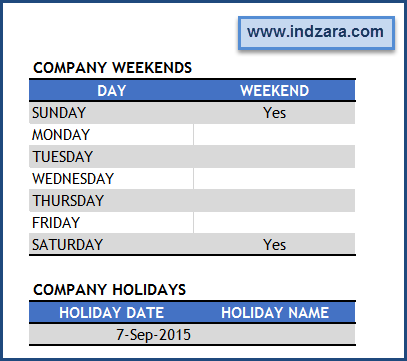
3) Company Weekends and Holidays
a. Choose Yes for weekdays which are usually company’s weekends.
b. Enter the list of Company holidays.
c. Template will not schedule any work during weekends and holidays.
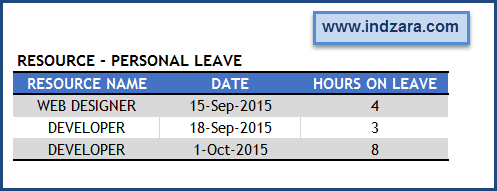
4) Resource – Personal Leave
a. Enter any personal leave each resource will take. Enter hours that the resource will take for leave. This will be used to calculate the availability of resources that will drive the schedule.
Step 2: Enter Projects’ information

- Required
- Enter Project ID and Name. These should be unique and are required
- Enter Project Priority (required).
- Project Priority is used to determine the order of scheduling tasks. 1 represents the highest priority. For example, project with Priority 1 will be given importance and scheduled first before scheduling Project of priority 2.
- If Project Priority is left blank, the project will not be included in plan. If two projects are given equal priority value, the tasks are ordered based on task priority and then the order in which they appear in the TASKS table.
- Optional
- Enter Preferred Start Date (date before which Project should not start)
- If Preferred Start Date is left blank, Planning Period Start Date will be used.
- Enter Preferred End Date (date by which the Project should end)
- If Preferred End Date is left blank, project will be considered completing ‘ontime’ if it is estimated to complete.
- Enter Project Fixed Cost.
- This is the cost other than the resource cost which will be calculated by the template.
- Enter Preferred Start Date (date before which Project should not start)
- Calculated
- Project Plan Status gives instant feedback on whether there are any errors associated with the Project. If there are no errors in data, then it will display ‘Planned’.
Step 3: Enter Tasks’ information
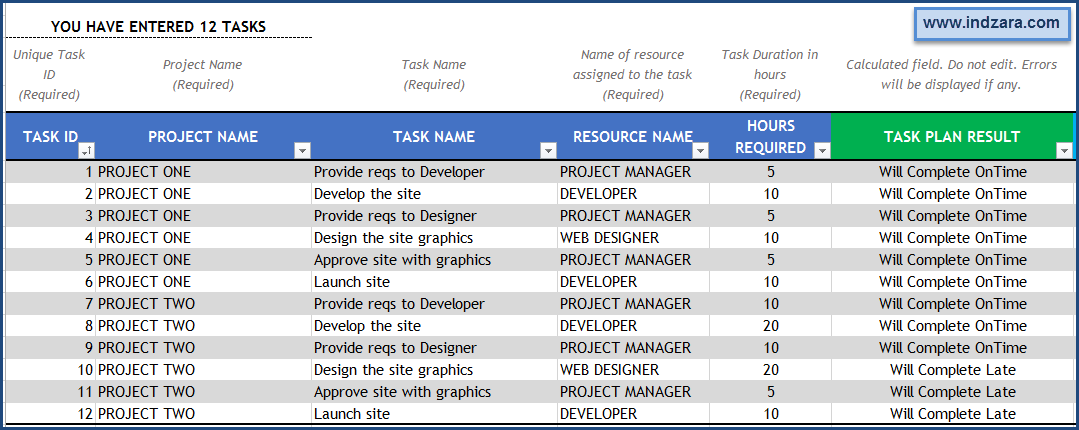
- Required
- Enter Task ID (unique values)
- Enter Project Name (that the task belongs to) and Task Name
- Enter Resource assigned to the task
- Enter Hours Required to complete the task
- Calculated
- Task Plan Result field will display error if there are any. If there are no errors, it will display ‘Will Complete OnTime’ if the task will be completed prior to Task Preferred End Date and ‘Will Complete Late’ otherwise. It will display ‘Will Not Complete’ if the task cannot be completed.
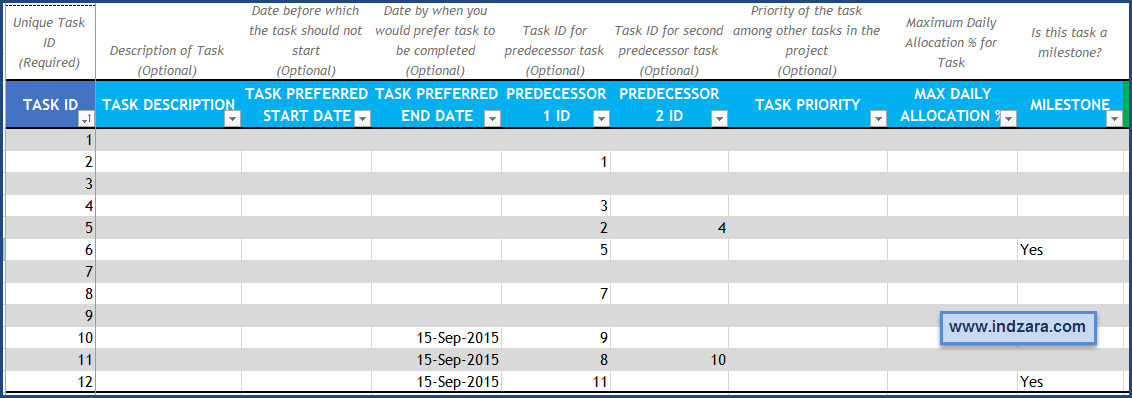
- Optional
- Task Preferred Start Date can be used to indicate if a task cannot begin until a certain date.
- Task Preferred End Date can be used to indicate if a task should end by a certain date. This is used to flag whether a task completes on time or late.
- Up to 2 predecessors can be assigned to a task. When a predecessor is assigned, the task can be started only the day after the predecessor has been completed. Similarly when 2 predecessors are assigned, the task can begin only the day after both predecessors are completed.
- Task priority is provided so that you can control which task gets done first if the same resource is assigned to multiple tasks within the same project.
- If task priority is not provided, all such tasks in the project will be prioritized based on the order in which they are entered in the table.
- Max Daily Allocation % is the % of a resource’s time every day that the task should be limited to. For example, if a resource is available for 8 hrs on a day and you had set 50% max daily allocation, then the template will only schedule the resource up to 4 hrs for that task. This allows a resource to work on multiple tasks in parallel.
- Milestone: Leave it blank if a task is not a milestone. Otherwise, choose Yes. This will be displayed on the Gantt chart.
- Calculated
- Overall Priority will show ‘ERROR’ if required fields are not populated. Tasks that have errors will not be included in plan. Lowest number means the highest priority.
With this step, the data entry in this template is complete. All the following sheets will be automatically created.
Step 4: PLAN Summary
Projects’ Summary:

- Summary of each project’s key metrics and attributes
- Projects that will not complete will be highlighted.
Projects – Timeline view
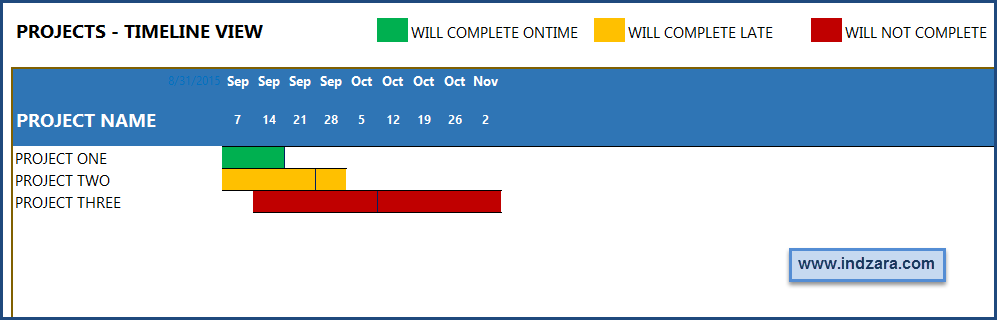
- Visual representation of the projects’ timeline (weekly).
- It also highlights whether the project will complete on time, late or will not complete.
- The blue vertical line indicates the Preferred End Date of projects.
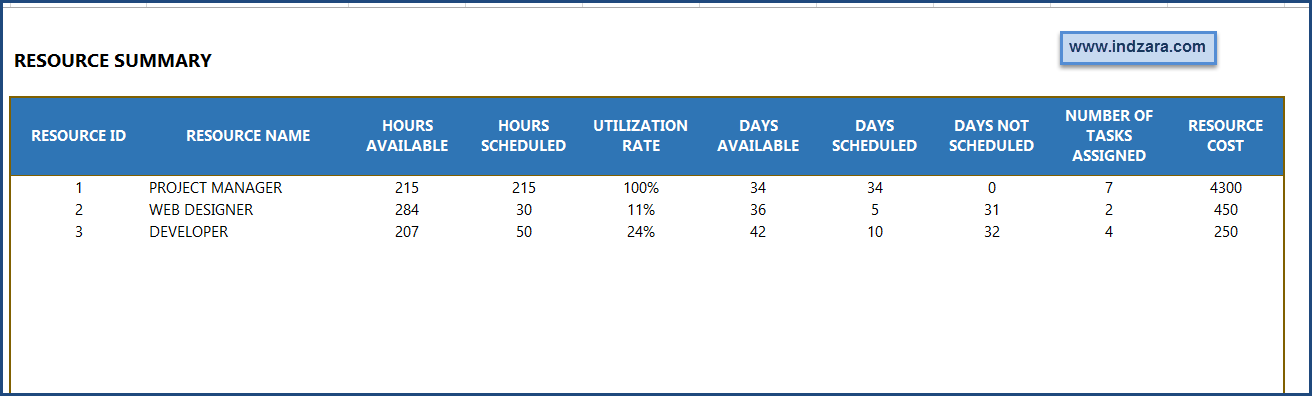
Resource Summary
Summary of statistics for each resource
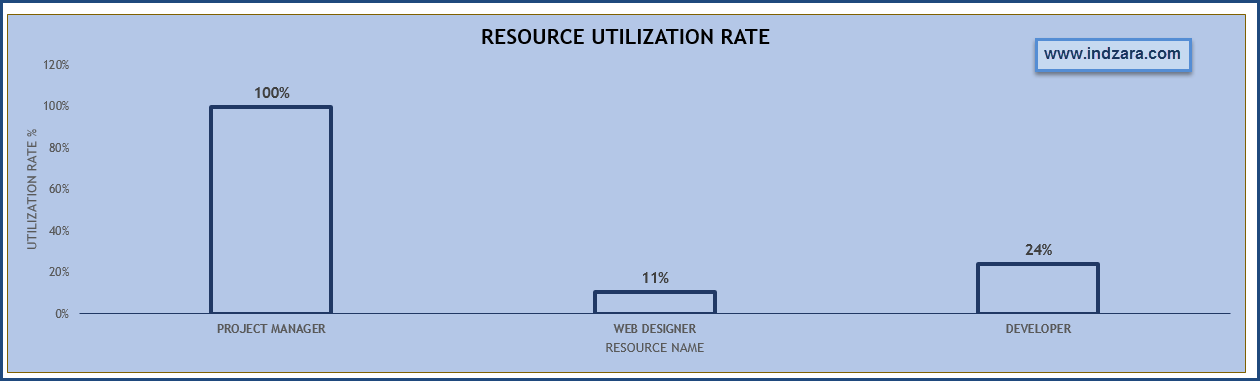
Resource Utilization Rate of each resource
5. Task Schedules
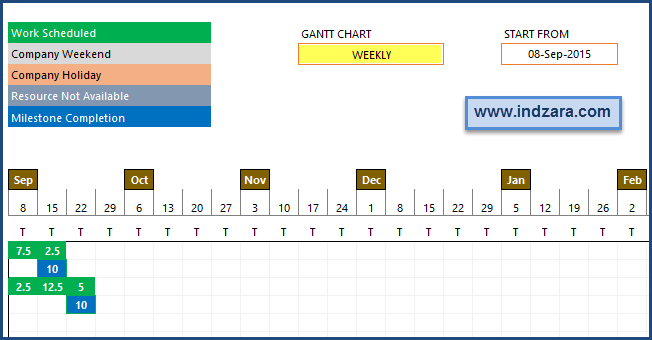
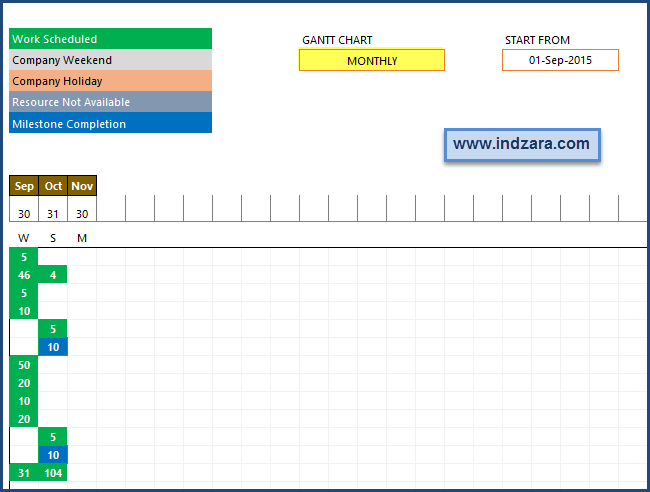
This sheet provides the schedules (Gantt charts) that are customizable. First, you can choose from three different schedule types. (Project, Resource or All Tasks). By default, All Tasks will be shown.
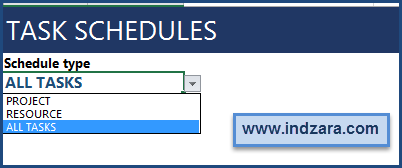
You can choose PROJECT and choose one of the Projects. You will now see three things.
1) Project Summary at the top with key statistics
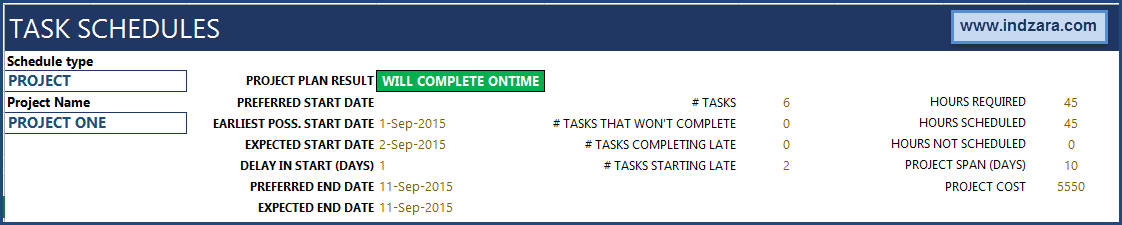
2) Tasks with their details. 50 tasks are shown at a time.

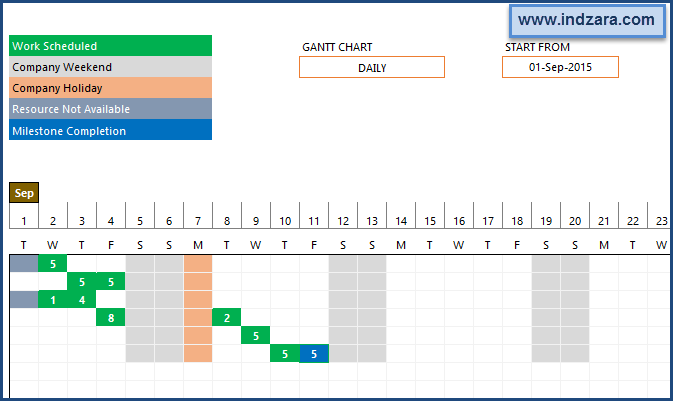
3) Gantt Chart
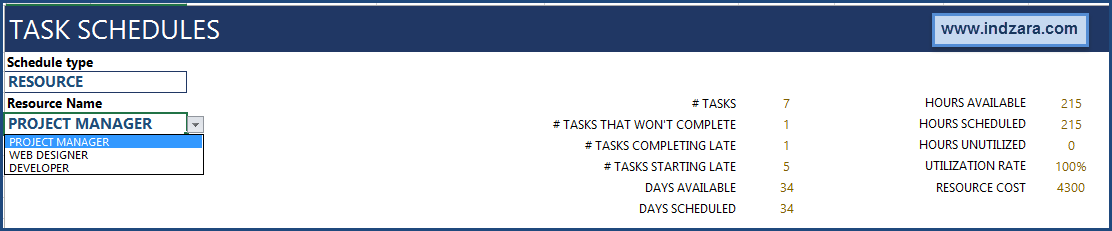
In order to see schedule for a specific resource, you can choose the resource schedule type.
Tasks that will complete late will be labelled as orange background and those that will not complete will be shown in red.

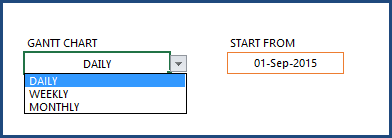
Gantt chart can be customized by entering any start date and choosing from Daily/Weekly/Monthly. You can also change the start date of the Gantt chart.
Step 6: Resource View
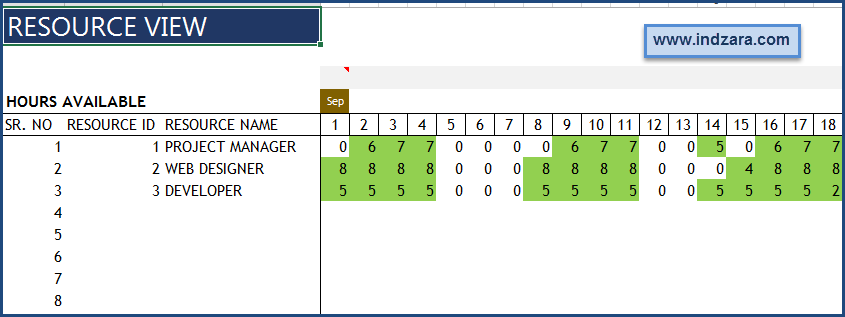
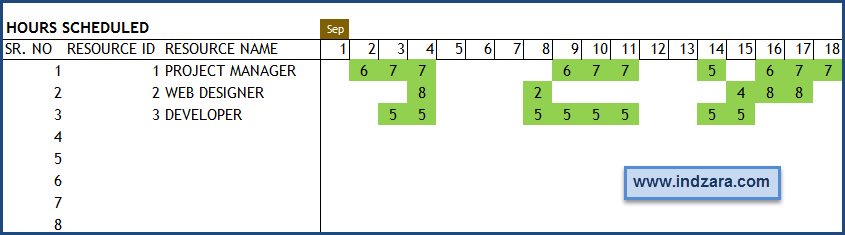
The ‘Resource View’ sheet displays the hours available for each resource for each day and the hours they have been scheduled.
37 Comments
Hi, could you show me how to share my schedule planning?
Can you please raise a ticket with us at support@indzara.com – Our support team can help you in this regard. Thank you!
I have two questions that I invite any suggestions for a possible fix.
1) I have a resource that is dependent on two others before it is required to start. I have set up those resources as predecessors 1 and 2. The dependent resource, however on every occasion, gets scheduled to start on the same days at the predecessors and not the day after the end date of predecessor as it should. This happens only with this particular resource. Other resources behave as required. I’ve tried removing the resource from the resource table and re-adding.
Do I need to check any data in hidden sheets that drive the scheduling?
2) I also have more than one resource that is used in the same project more than once. As an example, Resource C consists of more than one worker and each project has a daily allocation assigned and is required to carry out X many days of work. The project then needs to flow to Resource D for X number of days. The project then needs to go back to Resource C for completion of resources assigned to that resource area. Is there a work around that removes errors in duplicated resources for the same project that still addresses the resource capacity check? I still need an accurate treatment of the Resource C to identify bottle necks in this resource and to know when capacity is reached.
All feedback appreciated
Thanks for using the template.
Is it possible to send the file and highlight the specific scenarios? Please email support@indzara.com
1. The dependent resource should start the date after the predecessor completes.
2. Can you please clarify what it means by ‘Resource C consists of more than one worker’? If a task by C has to be done and then for D to do something and finally come back to C, those would be three tasks.
Please let me know.
Thanks & Best wishes.
Thanks you for replying to my post.
“1. The dependent resource should start the date after the predecessor completes.”
All but the odd one that doesn’t. Capacity is mostly free. I can fix by forcing a task start date.
” 2. Can you please clarify what it means by ‘Resource C consists of more than one worker’? If a task by C has to be done and then for D to do something and finally come back to C, those would be three tasks.”…
Responding to your comment and to provide clarification, yes you have it right in that task C needs to be first done, then D then back to C .
I am attempting to use the project planner to manage a production manufacturing plant.
Task C in my example represents a team of workers in one area of the production line. There are 4 workers available for 8 hours per day. Their resources are allocated a percentage of the total available resource for the day, e.g., 25% of the available 32 hours available.
Task C (step 3) and it’s workers carry out a fabrication role. The project then moves to task D (step 4), which in this case is painting. The painting team is also a pool of workers and are responsible for carrying out task D. This team is however, completely seperate to the task C team. After task D ‘painting’ is completed, the same team and resource used in task C carry out reassembly of parts (stage 5).
I could just set up three seperate resources as you have stated.
The problem is that in my case the same workers and pool of hours used for stage 3 are also used in stage 5. I am relying on the resource capacity function to appropriately schedule the days and skip days when resource capacity is met based on my allocation of resource to the hours required to complete the task.
The plant at capacity produces 25-30 projects with tasks ranging from 6 to 20 assigned to each project.
I hope that I have clarified my example well enough?
I have found the odd other quirky response. I have a work around but will delay discussion for now.
The product you have created is very clever and useful. What I’m thinking is that it would be great if it was possible to have duplicate resources in the same project and have a way of managing their order of operation and to be able to split multiple blocks of consumption of that resource . Perhaps I’m looking at it all wrong and there is a simpler solution that still allows me to address the scheduling and capacity concerns I speak about.
Yes, I can e-mail the file with highlighted area.
Thank you.
Please email file to support@indzara.com
Thanks & Best wishes.
Sorry for the delayed response.
You can assign multiple resource to same project with different predecessor task ID. The template will automatically allocate the resource according to the task assigned based on the predecessor task ID.
Sure, please share the file with highlighted area at the below link and we will check and get back to you:
https://support.indzara.com/support/tickets/new
Best wishes.
Hi, Thank you for the wonderful Project Planner tool. I am trying it out now and have noticed an issue. I would like to enter data for “resource – personal leave” to cover multiple days. When I enter hours that span over many days (say 6 days); I notice that in the resouce view only the first day of the leave is set to zero. For example, if a resource is available for 6 hours a day and I enter 36 hours of leave, I expect 6 days are set to zero availability. Is this the functionlaity I should expect or am I doing something in-correct?
Regards
You are welcome. Glad you find the template useful. Please post your review on the product page https://indzara.com/product/project-planner-advanced-excel-template/ Thanks for your support.
In this template, each personal leave day has to be entered separately. If there are 6 days, we should enter them individually in 6 rows in that table.
Please let us know if there are any questions.
Best wishes.
Hi,
Can the planning period be extended beyond 366 days?
Hello
The planning period can be of maximum 366 days
Regards
Is there any way to insert a recurring task?
Hello
Repetitive tasks can be tracked on our “Calendar Template”. Please visit https://indzara.com/product/event-calendar-maker/ for details.
Best wishes
Unable to unprotect the sheets
Is there anyway I can use the personal leave portion for vacations? If so how do I go about doing that?
Yes, Personal leave table is to enter any vacation or time off that resources take. Please let me know if there are any questions.
Thanks & Best wishes.
when I put in 40 for the hours it is only reflecting on the date. So does that mean I would have to put that person in 5 times. One for each day off?
Yes, you are correct. Each day taken off should be entered separately.
Please let me know if there are any questions.
Thanks & Best wishes.
Hello Indzara!
I would like to know if it would be possible to extend the number of resources. Unfortunately, 30 is a little short for my needs. I would like to double that, possibly going up to 80.
Is it just a matter of tweaking the formulas or is it an Excel limitation here?
Thanks in advance for the answer!
It is technically possible to extend the number of resources, but it would require changes to formulas in multiple sheets in the workbook. It is not straight forward though.
Best wishes.
I guess you don’t happen to have that ready, do you? 🙁
I will reply to your email.Thanks. Best wishes.
I found the formula by unprotecting the sheet.
I fixed the issue i reported above by modifying the formula in “Hours not scheduled column” to =IFERROR(ROUND([@[HOURS REQUIRED]]-[@[HOURS SCHEDULED]], 4),””)
Thanks again for the great template.
Thank you. I am glad that you updated the formula needed. Please let me know if there are any questions. Please post your review on the product page https://indzara.com/product/project-planner-advanced-excel-template/ (right sidebar). Thanks & Best wishes.
The template is great. I did find a small bug. There is some rounding or fractional error sometimes, for some projects it will show required hours and scheduled hours with matching values, but there will be a very small remainder of “hours not scheduled” – like 1.7053E-13 or some similar very small value. This small remainder will cause it to show “WILL NOT COMPLETE” as the plan result. Modifying the amount of hours required can force it to recalculate, but it would great if you could fix by counting any hours less than .0001 as 0 or something similar. I tried to modify but cant find the code that is generating the “Hours not scheduled” calculation.
Hi ,
I would like to how do i mark a task completed in Project Planner v2_3.
Thanks,
Nitin Patil
Hi Indzara,
First of all thank you for such a useful planner.
I would like to know how the status of activities will change to complete once the activity is completed. The utility shows if the activity will get complete on time or not but i could not see where to mark the activity completed/not completed if target date is passed.
Thanks
Nitin Patil
Thanks for your feedback. I am glad that you find it useful.
To just mark tasks whether they are complete or not, you can definitely add another column in Tasks table to track that. However, it won’t be used in populating the Plan Summary or other sheets. Please note that this tool is for planning one or many projects ahead of time. The Project Manager template https://indzara.com/product/project-manager-excel-template/ allows planning and tracking actual progress of tasks. That template is designed for only one project at a time. Due to the complexities in the calculations, they are separate. The Project Manager template is ideal if you are planning and managing one project. Project Planner is ideal for planning multiple projects.
Please let me know if there are any questions. Best wishes.
Thanks for clarification.
You are welcome. Thanks for understanding my explanation. Best wishes.
In your Step 4: Plan Summary, Project Summary image above, Project One has a ‘Preferred End Date’ of 11-Sept-15 (which is the Friday of week-beginning 07-Sept-15), and says ‘Will Complete On Time’. But on the Timeline View chart, the graphic looks like Project One extends into the end of the week-beginning 14-Sept-15.
This is what I see on my Timeline View too with my data (e.g. project with preferred end date Friday 29-Jul-16, all green, actually look like it will finish in week beginning 4-Aug-16).
Everything’s green, yet the dates along the top definitely look like projects finish a week late.
Is this a bug or expected behaviour?
Thanks
Edit: I mean “project with preferred end date Friday 29-Jul-16, all green, actually look like it will finish in week beginning 2-Aug-16”
Graeme, the date shown is the week end date. Please let me know if that answers your question. Thanks & Best wishes.
Thanks for the reply, ok will work with what it does I guess. A project that completes on time on Friday 11-Sep-15 shows on the plan view a full green cell with Monday 14-Sep-15 above it – just never seen a week that ends on a Monday before. :S
You are welcome, Graeme. The template is designed so that the week end date is dynamic. Since I had chosen Sep 1 (tues) as Planning Period Begin Date, Sep 7 (mon) is displayed, as it’s the completion of the week beginning Sep 1. If you enter a Monday as Planning Period Begin Date, then Sunday will be week end date. It is completely flexible. Please let me know if there are any questions. Best wishes.
Please let me know how I can buy this I am unable to make payment
lp
Please email me at indzara@gmail.com with error message you may be receiving. Which browser and which payment method are you using? Thanks for your interest. I will do my best to help.